


Résumer cet article :
A few years ago, choosing a home NAS quickly came down to hesitating between two or three well-established brands. UGREEN arrived much later in this market, but seemingly with a certain desire to shake things up. After a first generation NASync that was already very interesting, the manufacturer steps it up with the UGREEN NASync DXP4800 Pro.
And the word “Pro” is not just stuck on the front for aesthetic reasons. Here, we find four SATA bays, two NVMe SSD slots, and a 13th generation Intel Core i3 processor supported by DDR5. On the networking side, there is 10 GbE and 2.5 GbE. And for the rest: an HDMI output, an SD card reader, numerous USB ports, Docker, virtualization, and even locally executed artificial intelligence functions. In other words, calling the DXP4800 Pro a simple “box to put four hard drives in” would be completely missing the point of the product.
A NAS is, of course, an excellent way to regain control of your photos, videos, documents, and backups instead of stacking iCloud, Google One, or Dropbox subscriptions. But with a machine of this caliber, you can also host Home Assistant, run dozens of Docker containers, create virtual machines, manage a Jellyfin media library, centralize surveillance cameras, or set up your own cloud. This precisely is what makes this model particularly interesting for us!
Unboxing the UGREEN DXP4800 Pro: a NAS that inspires confidence
UGREEN has long mastered the design of high-end computer accessories, and this is immediately evident upon unboxing.

The NAS is particularly well protected during transport and comes with its external 150 W power supply, Ethernet cables, two small keys for locking the drawers, a screwdriver, screws intended especially for 2.5-inch devices, as well as thermal elements needed for NVMe SSDs.

The first contact with the machine is quite flattering.
UGREEN has abandoned the very plastic approach still found on many NAS in favor of a metal chassis measuring 257 x 178 x 178 mm.

The overall feel is dense and inspires confidence. This metal is, by the way, not just there to please the eye: the chassis also contributes to thermal dissipation, particularly for the NVMe SSDs installed under the device.

The DXP4800 Pro largely reprises the design of the DXP4800 Plus. The four drawers naturally occupy most of the front panel. They are numbered, and each has a small lock.
Let’s be clear: this is obviously not a theft prevention system. However, in an office, an accessible technical area, or simply a house with curious children, it prevents a disk from being accidentally removed during active use.
Under the bays are the power button and various indicators showing, among other things, the status of the disks and the network.
UGREEN also had the excellent idea of placing the most useful connectors for daily use directly on the front.

This way, we have an SD 3.0 card reader, particularly appreciated by photographers or videographers wishing to quickly offload a memory card, as well as a USB-C 10 Gbit/s port and a USB-A 10 Gbit/s port.
You just returned from a weekend with several tens of gigabytes of photos? No need to turn on the PC, plug in a card reader, then copy the files to a network share: the SD card can go directly to the NAS. It’s simple, but once you’ve tasted it…
A particularly generous connectivity
The back confirms that the DXP4800 Pro clearly aims higher than the simple entry-level family NAS.
It features a USB-A port at 5 Gbit/s and two USB-A 2.0 ports, perfectly suited for low-bandwidth peripherals. A USB UPS, for example, does not need a 10 Gbit/s port at all.

An HDMI output also allows direct connection of the NAS to a television or a monitor. UGREEN announces output up to 4K. The DXP4800 Pro can thus become a standalone multimedia machine, with content being decoded directly by the NAS before being sent to the screen.
But it’s especially the two Ethernet ports that catch attention. UGREEN offers a 2.5 GbE port and a 10 GbE port simultaneously. And there’s no need to aggregate multiple interfaces to achieve 10 Gbit/s: a genuine 10 GbE interface is available natively!
This is great news for content creators regularly handling videos of several tens of gigabytes, but also for anyone wanting to keep their NAS for many years.
A classic Gigabit home network will, of course, continue to work. The NAS will simply be limited to around 110 to 120 MB/s, which corresponds practically to the physical limit of Gigabit Ethernet.
In a typical home installation, I was able to measure about 110 MB/s in both read and write. At this level, it’s no longer the NAS waiting for the network; it’s the network trying to keep up.
With a 2.5 GbE switch, now much more affordable, you can already multiply these performances by more than two. And if the entire chain switches to 10 GbE, the DXP4800 Pro can really stretch its legs. That’s precisely what I did at home, thanks to a Unifi switch supporting 10 GbE, allowing the NAS and my PC to enjoy the best possible speed on the network.


At the back is also the large cooling system.

A magnetic dust filter can be removed in seconds for cleaning.
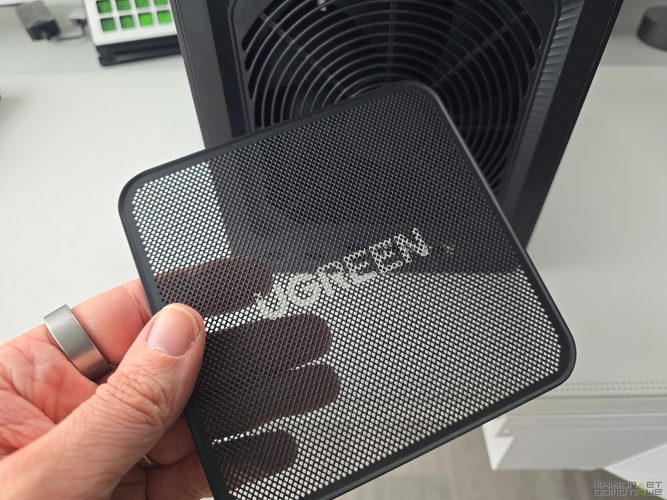
A detail that I appreciate a lot on a device intended to run 24/7: in a few years, vacuuming a removable filter will be much more pleasant than a complete disassembly of the NAS.
Four SATA disks and two NVMe SSDs: up to 144 TB
The DXP4800 Pro has four SATA bays accommodating 3.5-inch hard drives as well as 2.5-inch disks or SSDs.
Installing a 3.5-inch drive is completely tool-free. You just need to pull out the drawer, unlock its retention system, place the drive, and close it all up. A few seconds is all it takes.

For 2.5-inch peripherals, screws are needed, but UGREEN provides the screws and screwdriver.
As always with a NAS, I strongly recommend using disks specifically designed for this purpose, such as the Seagate IronWolf or Western Digital Red ranges. A NAS potentially runs 24 hours a day with several disks installed very close to one another: the vibration and endurance constraints are different from those of a disk installed in a PC used a few hours a day.
The current technical sheet of UGREEN lists a maximum capacity of 144 TB, corresponding to four 32 TB SATA disks plus two 8 TB NVMe SSDs.
These SSDs are placed in two M.2 slots accessible behind a flap located under the NAS.
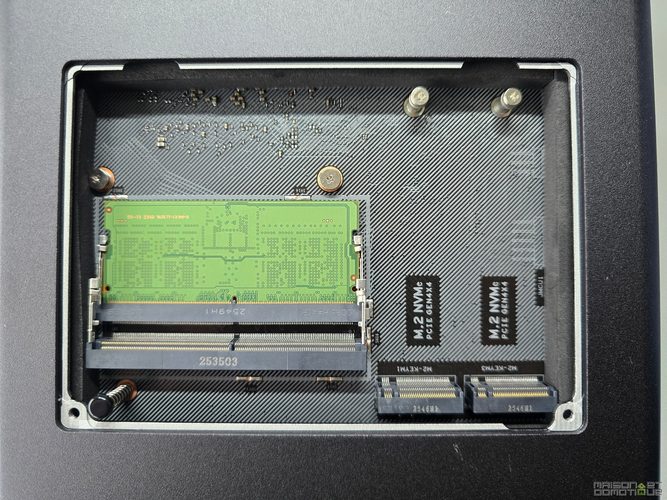
They can be utilized in different ways.
The first is to use them as a cache to speed up certain accesses to the mechanical disks. But beware of a common misconception: installing a cache SSD doesn’t magically make all transfers faster.
On large sequential transfers, the cache can even add extra processing and reduce write speeds. Its interest becomes much clearer with small blocks and random access, where IOPS performance greatly improves.
In practice, for a simple backup server receiving mainly large files, it may sometimes be best to keep your money.
Conversely, if you use databases, many Docker containers, virtualization, or thousands of small files, the SSDs make all their sense.
Another strategy, and probably my favorite with this type of machine, is to turn the NVMe into a full SSD volume. You can then reserve the four large mechanical disks for bulky data and install applications, containers, and virtual machines on the SSDs. You get the best of both worlds: plenty of space on one side, but immense responsiveness on the other.
Under the hood, a real PC
The DXP4800 Pro features a 13th generation Intel Core i3-1315U, an x86 chip equipped with six cores and eight threads capable of reaching 4.5 GHz. We are clearly no longer dealing with a small ARM processor barely capable of serving a few files on the network.
The DXP4800 Plus used a Pentium Gold 8505 with five cores and six threads. This Pro version thus gains in computing power, but also in margin when it comes to simultaneously running multiple services, a virtual machine, photo indexing, and video transcoding.
Another advantage of this Intel chip is its integrated graphics circuit and support for hardware video acceleration. For Jellyfin and other multimedia solutions able to exploit Intel Quick Sync, this makes a big difference.
Tests conducted with 4K HEVC content, and even 8K, show that hardware transcoding remains very light for the processor.
The DXP4800 Pro comes with 8 GB of DDR5.

This is sufficient to get started, and more than enough for classic storage, photos, multimedia, and a few containers. But on a machine labeled “Pro” and designed for virtualization, I would have honestly preferred to find 16 GB right out of the box.
Fortunately, two SODIMM slots allow memory to be expanded to up to 96 GB.
At 32 GB or more, you get a true small server platform capable of running multiple virtual machines while leaving room for NAS services. Well, given the current price of RAM, you will still need to reach deep into your wallet :/
Finally, the UGOS Pro system has its own 128 GB system SSD. It does not occupy a part of the storage disks or either of the two M.2 slots intended for the user. This choice also has an interest for the more adventurous: x86 hardware and access to the BIOS allow for the installation of alternative systems like TrueNAS or Unraid. The DXP4800 Pro is thus much less locked down than a number of competing appliances.
Initial setup: UGREEN takes care of beginners
A NAS can have the best technical specifications in the world: if it takes three hours and fifteen Google searches to create its first shared folder, it will remain in a niche market. UGREEN understands this well.
Once the disks are installed, you simply connect the NAS to the network, turn it on, and then go through the UGREEN NAS app or the interface accessible from a browser.

The DXP4800 Pro is automatically detected when it’s on the same network. The setup assistant then prompts to name the NAS, create the admin account, set the password, and choose the update strategy.
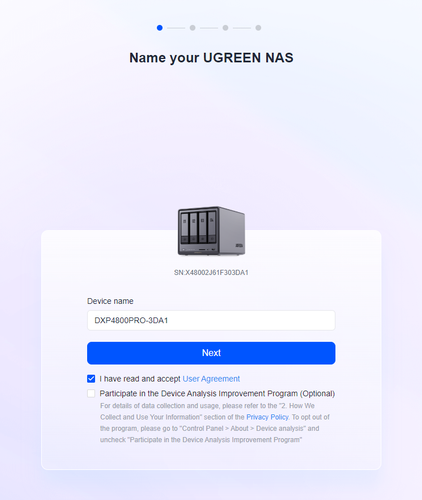
The UGOS Pro interface then appears as a real small desktop.
The overall design is modern and quite intuitive. When you know macOS, you’ll also find a very familiar organization: desktop, control panel, file explorer, and application center. You quickly find your bearings.

However, one must start with the most important thing: creating storage.
RAID 5: probably the most logical choice with four disks
UGOS Pro supports JBOD, Basic as well as RAID 0, 1, 5, 6, and 10.
With four identical disks, RAID 5 provides many users the best compromise between capacity, performance, and fault tolerance.
Let’s take, for instance, four 8 TB disks:
- In RAID 0, you have about 32 TB raw and very good performance, but the failure of a single disk destroys the entire volume.
- In RAID 10, half the capacity is sacrificed for redundancy and performance: about 16 TB remains usable.
- With RAID 5, the equivalent capacity of one disk is devoted to parity. You thus have approximately 24 TB of usable raw storage, and any of the four disks can fail without immediately causing data loss.
However, beware of a classic that deserves to be repeated: RAID is not a backup.
It protects against a single disk failure. It does not protect against accidental deletion, ransomware, a surge destroying the entire NAS, or a fire or theft.
For irreplaceable files, a second copy must exist elsewhere. Ideally according to the famous 3-2-1 rule: three copies, on two different media, with one offsite.

UGOS Pro also offers EXT4 and Btrfs. Btrfs is particularly interesting if you want to leverage snapshots and protect against certain silent corruptions. For a family or professional NAS where the priority is to protect data and allow for reverting to a previous version, this is generally the choice I would favor.

UGOS Pro: a lot of progress in a short time
The hardware ultimately wasn’t the biggest challenge for UGREEN. Creating an excellent case around an Intel processor, SATA controllers, and network cards is one thing. Building a system as mature as DSM from Synology, developed over twenty years, is another.
And it’s probably here that the DXP4800 Pro must be evaluated with the greatest nuance.
UGOS Pro is based on Linux and now offers everything expected for essential NAS functions: user and group management, access rights, shared folders, SMB, NFS, FTP, backups, synchronization, snapshots, external storage, remote access, system monitoring, and so on.
The applications are grouped in an App Center.

It notably includes tools for photos, music, videos, downloads, backups, and synchronization, but also functions that are much more interesting for advanced users.
Docker and virtualization are thus directly supported. And from there, UGREEN’s relatively modest catalog becomes far less of an issue. A native application not available? In many cases, it’s enough to run it in a Docker container.
Jellyfin, Nextcloud, Immich, MQTT, AdGuard Home, Node-RED, databases, monitoring tools… the list of possibilities is long.
The native UGOS Pro ecosystem remains less rich and less mature than DSM from Synology or QTS from QNAP. The integrated security management is also still improvable: the tools offered are mainly focused on malware detection without yet reaching the depth of some configuration audits available elsewhere.

UGREEN is moving quickly, but the software advantage accumulated by its historical competitors does not disappear in two generations of NAS.
An excellent media server
With four large storage bays, a 10 GbE interface, and the Intel processor, the DXP4800 Pro is naturally very well-suited for multimedia.

The in-house application already allows organizing a video library, but Jellyfin is obviously a particularly interesting solution.
The Core i3-1315U supports Intel Quick Sync hardware acceleration, allowing transcoding a video when a client cannot directly play its codec or when the available bandwidth is insufficient.
My tests showed that 4K HEVC high-bitrate videos are transcoded without significantly increasing CPU load. The platform even has enough margin to work with 8K content and several simultaneous streams in certain configurations. For a home equipped with multiple TVs, smartphones, and tablets, the DXP4800 Pro can thus become the central point of the entire family video library.
The presence of HDMI also offers another possibility: installing the NAS near the TV and directly entrusting it with playback.
The smartphone can then serve as a remote control to launch the content on the screen connected to the NAS.
Photos: artificial intelligence runs locally
The Photos application is probably one of the best examples of what UGREEN is trying to do with its new positioning around artificial intelligence.

Once the corresponding modules are installed, the NAS analyzes the photo library locally to recognize faces, identify certain objects, perform semantic searches, utilize text present in images, and detect duplicates.
During my tests, a search for “car” correctly retrieved snapshots containing vehicles. The recognition of people also automatically groups multiple photographs of the same individual.

The interest is not only practical. This analysis is performed locally on the NAS. Your family photos don’t have to be sent to an external service just for an algorithm to help you find all those featuring your dog, a car, or a specific person.

This is the kind of usage where a modern NAS becomes much more than just a disk space.
To go even further, you can even run small language models locally such as Qwen2.5 3B or Gemma2 2B via Ollama. One shouldn’t imagine transforming the Core i3 into a giant model server, but for experimenting with small local AIs, the potential truly exists.
With only 8 GB of original memory, however, you quickly reach a limit. Another reason to plan for 16 or 32 GB if AI and virtualization are part of the program.
Home Assistant on the NAS: now, that’s getting very interesting!
For us, this is obviously the part that interests us the most.
A NAS remains always on, has redundant storage, a sufficiently powerful processor, and power that can easily be secured with a UPS. Why not also entrust it with Home Assistant?
The DXP4800 Pro allows for two approaches.
The first is to use Docker. It’s very quick and more than enough for Home Assistant Container. It’s a one-click install from the App Center.

The second, more comprehensive approach is to launch Home Assistant OS in a virtual machine.
UGOS Pro has a virtual machine manager based on KVM. The Home Assistant image in QCOW2 format can be directly imported.
In a typical scenario, you can allocate two cores of the Core i3 and 4 GB of RAM to Home Assistant. The VM uses bridged mode networking to obtain its own IP address on the local network. It’s even possible to assign USB devices to the VM, such as a Zigbee or Z-Wave coordinator.
The result is extremely appealing. Home Assistant behaves as if it had its own little machine while benefiting from the NAS’s permanent availability.
And the virtualization manager also offers VM snapshots. Are you planning a big Home Assistant update or a particularly adventurous operation? You stop the VM for a few seconds, take a snapshot, then restart it. If things go awry, a few clicks allow you to revert to the previous state.
This is obviously not a reason to abandon the native Home Assistant backups, but it’s an excellent additional safety net.
To go even further, you can create a specific user for Home Assistant, give it rights only on a backup folder, and then enable SMB. Home Assistant backups can thus be stored directly on the NAS RAID volume.
NAS, storage, Docker, Home Assistant, MQTT, Node-RED, video surveillance… a single machine can start to replace a nice collection of Raspberry Pis and mini-PCs!
The DXP4800 Pro can also become an NVR
Another very relevant use in a connected home: video surveillance.
UGOS Pro has a surveillance application capable of centralizing cameras compatible with common standards like RTSP or ONVIF.
Records are then kept directly on the NAS disks. This can prevent the need to multiply paid cloud subscriptions from different camera brands while keeping the recordings at home. With several tens of terabytes available, you can obviously retain much more history than with a simple microSD card.
Better yet, the AI system can also enable recognition of people, vehicles, animals, etc., as well as facial recognition. All this locally!

For more advanced users, Docker opens up even more possibilities: Frigate, for example, can become an interesting track to explore depending on available acceleration hardware and detection needs.
One begins to understand why the Core i3 makes complete sense here.
Performance: the network can become the weak link
On a Gigabit network, the verdict is simple: the DXP4800 Pro nearly hits the network limit. Around 110 to 120 MB/s, nothing surprising.
In 2.5 GbE, you can exceed 200 MB/s with a sufficiently fast storage configuration.
But it’s obviously in 10 GbE that the NAS really becomes interesting.
My measurements obtained with four disks in RAID 5 typically show 450 to 500 MB/s in read and 300 to 350 MB/s in write. With NVMe storage, you can even observe transfers around 660 to 680 MB/s.
The 10 GbE is not there just for decoration on the technical sheet. If you are uploading videos directly from the NAS, regularly moving several hundred gigabytes, or using an NVMe SSD volume, it can make a huge difference.
A 100 GB file takes almost fifteen minutes at 115 MB/s. At 700 MB/s, you drop to about two and a half minutes. When this kind of transfer occurs several times a day, the 10 GbE network quickly stops being a luxury.
Silence, temperatures, and consumption
A NAS often runs day and night. Thus, three criteria quickly become important: noise, temperature, and power consumption.
On the first two, the DXP4800 Pro does quite well.
The large rear fan runs quietly when the system is not heavily loaded and generally stays discreet. Under low load, it’s often the mechanical disks themselves that become more audible than the cooling system. Ventilation obviously increases under heavy load.
The metal chassis also helps dissipate heat, and the NVMe SSDs benefit from thick thermal pads that transmit their heat to the metal plate located under the device. My measurements taken during prolonged testing indicate controlled temperatures, even with a fairly small space between the bottom of the NAS and the furniture. I would have also appreciated slightly taller feet. This would have favored airflow under the chassis and further limited vibration transmission.
In terms of consumption, the values vary greatly depending on the installed disks and load. UGREEN announces 18.12 W when the disks are in hibernation and 42.36 W during disk access. In my various tests equipped with several HDDs and SSDs, a low activity state typically encountered around 26 to 28 W and 40 to 60 W in common usage. A particularly heavy load combining CPU, disks, SSD, and network can rise much higher.
This is therefore not the most economical NAS on the market. But this consumption must be put in perspective with the functions it fulfills. If it simultaneously replaces a basic NAS, a mini-PC for Home Assistant, a Docker server, and perhaps a small multimedia server, the balance becomes much more interesting.
The true weak point remains UGOS Pro… but the gap is closing quickly
The DXP4800 Pro is hardware-wise impressive for its segment. The most obvious criticism does not concern the case.
UGOS Pro is rapidly improving and already offers a surprisingly accessible experience. But faced with Synology’s DSM and its immense ecosystem built over the years, UGREEN inevitably starts with a backlog.
Some very specific functions still lack a native equivalent. The application catalog is shorter. Some SMB or backup refinements are still less developed. And the security tool could go further in auditing exposed services and configuration.
For a user who relies on a particularly specific Synology application, one must therefore check their needs before migrating.
But there is a huge “but”. UGREEN has chosen an open x86 platform, with Docker and virtualization. For someone somewhat technical, many of the App Center’s shortcomings can thus be circumvented in a few minutes.
This is actually probably one of the great strengths of the product: beginners benefit from a simple interface, while advanced users can very quickly step off the beaten path.
Conclusion: UGREEN is clearly no longer a newcomer in the NAS market
I have already been following UGREEN’s entry into the NAS universe with interest. I have not had the opportunity to test the first models, but the DXP4800 Pro clearly shows that the brand does not intend to remain forever in the role of the friendly newcomer.
The hardware base is excellent. Four SATA bays, two NVMe PCIe, a Core i3-1315U, DDR5 expandable to 96 GB, a real 10 GbE port, a second 2.5 GbE network, plenty of USB ports, HDMI, and an SD card reader: it’s hard to fault UGREEN for skimping on the hardware.
And above all, this power can truly be utilized. One day, the DXP4800 Pro backs up the computers and smartphones of the entire family. The next day, it hosts Jellyfin, Home Assistant, a MQTT broker, some Docker containers, and a virtual machine. Meanwhile, the Photos application locally indexes several tens of thousands of pictures. It’s this versatility that I appreciate.
Not everything is perfect. The 8 GB of standard RAM seems scarce given the machine’s potential. UGOS Pro still needs to mature to match the best historical NAS environments. And consumption is inevitably higher than that of a small ARM model when heavily loading the Core i3.
But for someone looking today for a four-bay NAS capable of going much further than simple storage, the DXP4800 Pro undoubtedly deserves a place at the very top of the list.
For smart home enthusiasts, it is even particularly appealing: having RAID storage, Docker, virtual machines, and enough power for Home Assistant in one box opens up great possibilities.
UGREEN had to prove that it could do more than just good hardware accompanied by still young OS. With the DXP4800 Pro, the answer is frankly convincing. For my part, this DXP4800 Pro has replaced my aging Synology DS1019+:p



Please remain courteous: a hello and a thank you cost nothing! We're here to exchange ideas in a constructive way. Trolls will be deleted.