
Résumer cet article :
A computer that replaces a tower for working, watching videos, controlling the smart home or hosting a few services, and fits in the palm of your hand: I love this idea. The mini-PC market is becoming increasingly interesting, largely thanks to AMD mobile processors, which continue to deliver solid performance several years after their release.
After the NiPoGi AM06 Pro, and more recently the GMKtec NucBox M3 Pro, I was back at it with the NiPoGi Pinova P1. This time, we step down a notch in both power and price. It’s not meant to compete with a workstation: the goal is a compact computer that handles everyday tasks reliably, and perhaps a few home automation projects too.
On paper, the specs look solid: AMD Ryzen 3 PRO 7330U, 16 GB of DDR4, a 256 GB SSD and Windows 11 Pro preinstalled, along with a generous selection of ports and support for up to three 4K displays. But specs don’t tell the whole story, and my benchmarks turned up a few surprises, especially when it came to storage and graphics.
Unboxing and overview of the NiPoGi P1
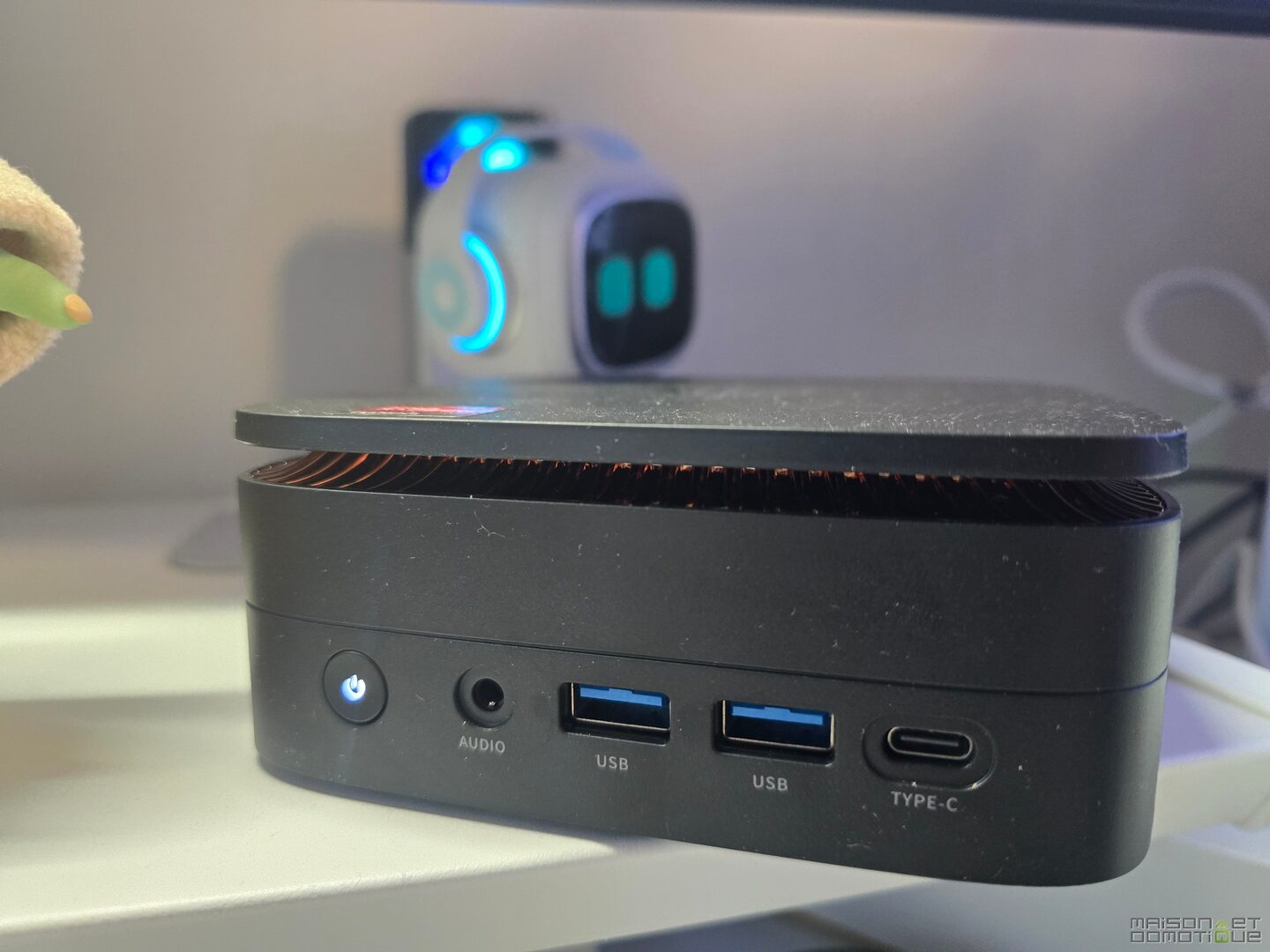
The P1 follows a familiar formula: a small, discreet black square case designed first and foremost for practicality.
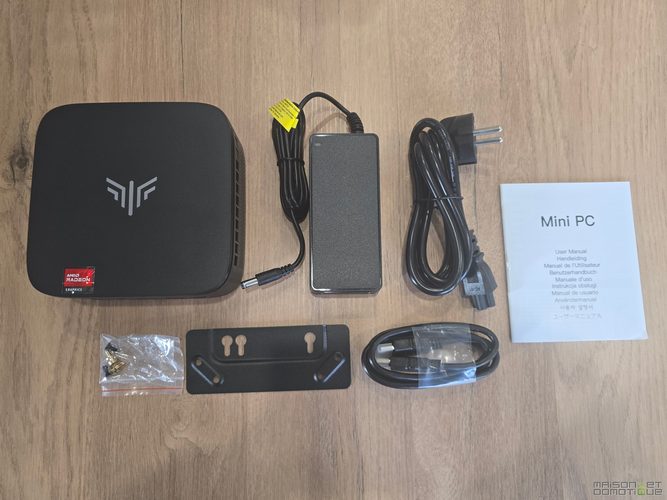
At around 12.8 x 12.8 x 5.1 cm, it takes up very little space. You can tuck it under a monitor, put it on a shelf, or even mount it behind the monitor using the VESA mount. That’s the real appeal of these machines for me: turning an ordinary display into a complete workstation, without a tower under the desk.

The case is made of plastic, which is hardly surprising at this price. The slightly raised top cover helps air circulate. Underneath, a fan expels heat from the processor through the vents in the chassis.
This version normally comes with the mini-PC, a 65 W external power adapter, an HDMI cable, the VESA mount and its screws, and documentation. Contents may vary depending on the configuration, so check before buying. The external power supply keeps the case compact, but you’ll need a power outlet nearby: the USB-C port is not listed as supporting Power Delivery input.

A fairly generous selection of ports
This is probably one of the P1’s strong points: despite its small size, NiPoGi hasn’t skimped on ports.
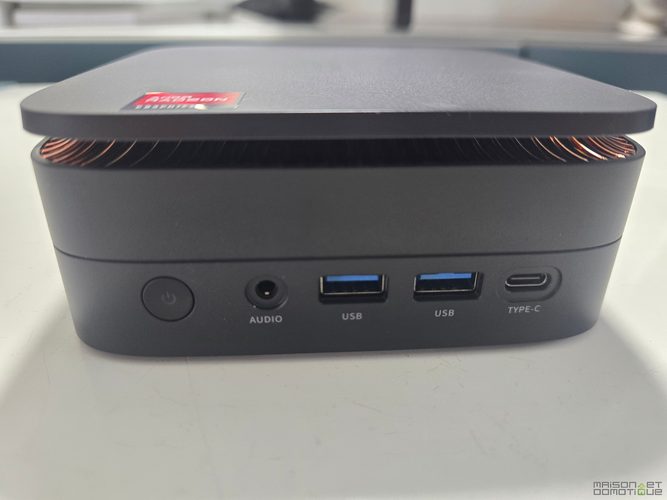
On the front: two USB-A 3.2 Gen 2 ports, one USB-C 3.2 Gen 2 port, a 3.5 mm jack and the power button.
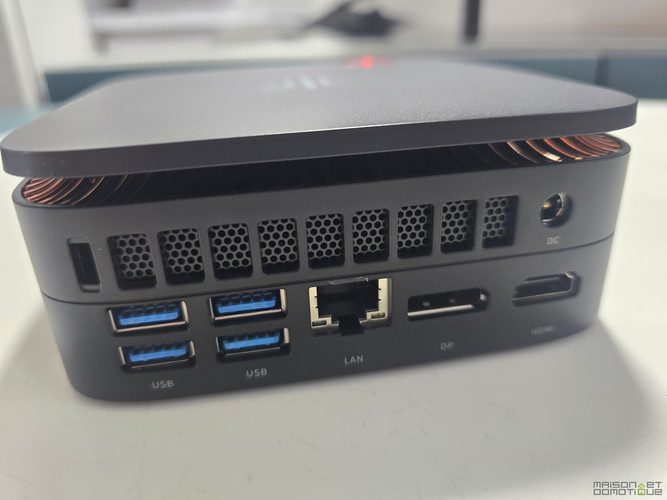
On the back: four USB-A 3.2 Gen 1 ports, one HDMI 2.0, one DisplayPort 1.4, an RJ45 Ethernet port and the power input. Seven USB ports in total, three of which theoretically support 10 Gbit/s. Between a keyboard, mouse, webcam, external drive, printer and two or three other accessories, that’s no overkill.
According to the manufacturer, HDMI, DisplayPort and USB-C can drive three 4K displays at 60 Hz. One screen for writing, one for research, one for email or monitoring, all without a dedicated graphics card: it’s an appealing idea. That said, I didn’t test all three displays connected at the same time.
For networking, this version is limited to Gigabit Ethernet, Wi-Fi 5 and Bluetooth 4.2. That’s enough for most situations, but it’s a far cry from newer mini-PCs with Wi-Fi 6E or 7 and 2.5 Gbit/s Ethernet. For a desktop PC, it’s not a big deal. For a home server that often transfers large files to and from a NAS, it’s worth considering.
A Ryzen 3 PRO configuration with some pleasant surprises
A quick note before we look at the numbers. The NiPoGi P1 comes in many versions, with very different processors: Ryzen 3 4300U, Ryzen Embedded R2544 or other AMD chips. So the reviews you find online may not be for the same machine your retailer is selling.
My unit definitely has a Ryzen 3 PRO 7330U: Windows, Geekbench, PCMark and 3DMark all confirm it. Here’s the configuration I tested.
| Component | Test configuration |
|---|---|
| Processor | AMD Ryzen 3 PRO 7330U |
| Architecture | AMD Zen 3, Barcelo R, 7 nm process |
| Cores / threads | 4 cores / 8 threads |
| CPU frequencies | 2.3 GHz base, up to 4.3 GHz Boost |
| L3 cache | 8 MB |
| CPU reference TDP | 15 W |
| Graphics | AMD Radeon Graphics, 6 compute units, up to 1,800 MHz |
| RAM | 16 GB DDR4, measured at 2,667 MT/s |
| Storage | 256 GB SSD |
| Operating system | Windows 11 Pro 25H2 |
| Video | HDMI 2.0, DisplayPort 1.4, USB-C video |
| Advertised networking | 1 Gb/s Ethernet, Wi-Fi 5, Bluetooth 4.2 |
| Dimensions | Approx. 128 x 128 x 51 mm |
Ryzen 7000 doesn’t mean a recent architecture
The Ryzen 3 PRO 7330U is sold under the Ryzen 7000 label, but it’s based on the Zen 3 architecture, which came out much earlier. The chip itself dates back to 2023.
That doesn’t make it a bad processor—not at all. Zen 3 is still efficient, especially for office work, and its four physical cores handle eight threads thanks to SMT (AMD’s take on multithreading). The PRO suffix indicates security and management features aimed at businesses. It doesn’t guarantee better performance than a non-PRO version.
The 15 W reference TDP is a good fit for a compact, low-power machine. Don’t confuse it with the PC’s power consumption at the outlet: it’s simply the processor’s nominal thermal design power.
16 GB of RAM, but a modest speed
The 16 GB of DDR4 is all there, with 15.4 GB usable according to Windows. That’s a comfortable amount for this category.
One minor drawback: the memory runs at 2,667 MT/s, even though the processor supports DDR4-3200. There’s a single 16 GB stick running at 2,666 MT/s, with a second slot available.
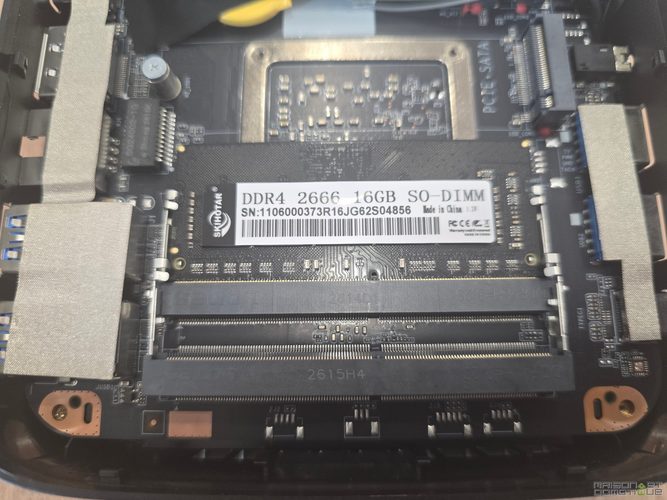
The integrated graphics use system memory and depend directly on its bandwidth: two sticks in dual-channel mode would give them more breathing room. You won’t really notice the difference in office work. In games or apps that put a load on the GPU, you’ll notice it a lot more.
Setup and getting started with Windows 11 Pro
The P1 comes with Windows 11 Pro, version 25H2 on my unit. The Pro edition adds a few useful tools: Remote Desktop host mode, Hyper-V and advanced administration options. That’s a plus for remote work, a backup machine or a PC you want to manage remotely.
Getting started is just like with any Windows PC: connect the display and peripherals, connect to the network and create an account.
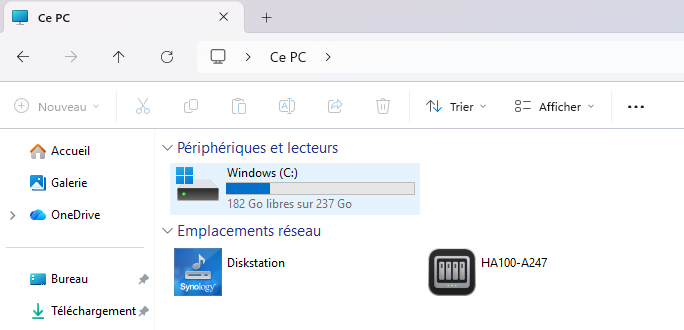
File Explorer shows a system partition of around 237 GB. That’s normal for a 256 GB SSD: manufacturers count in decimal gigabytes, while Windows doesn’t. Once setup was complete, about 182 GB was still free.
That’s fine for documents, the internet and office work. With a Steam library, creative software, virtual machines or lots of photos and videos, space will run out quickly. And as we’ll see, this SSD isn’t the machine’s best component.
Geekbench 6 and 7: a processor that still holds its own
Let’s get to the numbers!
For the processor, I use Geekbench, which simulates a whole range of tasks: calculations, compression, image processing, scientific operations and data manipulation. It produces two scores. The single-core score measures the performance of one core, giving a good indication of how responsive everyday software will feel, since it doesn’t always use multiple cores. The multi-core score measures the performance of all the cores working together: multitasking, compression and more demanding workloads.
Geekbench 6: 1,789 points single-core and 4,881 multi-core
To put these figures into context, I compared them with other machines I’ve tested, all measured using the same version of Geekbench, which I’ve been using for quite a while.
| Machine | Single-core | Multi-core |
|---|---|---|
| GMKtec G11, Ryzen Embedded R2514 | 1,074 | 2,766 |
| NiPoGi E1, Intel N150 | 1,236 | 2,863 |
| Khadas Mind, Core i7-1360P | 1,654 | 4,420 |
| NiPoGi P1, Ryzen 3 PRO 7330U | 1,789 | 4,881 |
| NiPoGi AM06 Pro, Ryzen 7 7730U | 1,909 | 6,300 |
| GMKtec M3 Pro, Core i5-13500H | 2,352 | 9,296 |
| GEEKOM AE7, Ryzen 9 7940HS | 2,665 | 13,242 |
A pleasant surprise from the P1. Compared with the GMKtec G11, which I found very interesting for small home servers, it’s about 67% faster single-core and 76% faster multi-core. Not bad at all!
It also beats the NiPoGi E1 and its Intel N150, and even edges out my first Khadas Mind with its Core i7-1360P in this particular test. Take that with a pinch of salt: cooling, power profiles and test conditions also affect the results.
There are no miracles against more ambitious machines. The GMKtec M3 Pro and its Core i5-13500H score almost twice as high in multi-core, while the GEEKOM AE7 is in a different league. But that’s not what you expect from a Ryzen 3 desktop PC. For web browsing, Office, Excel and running several apps at once, these results are very encouraging.
Geekbench 7: a consistent second measurement
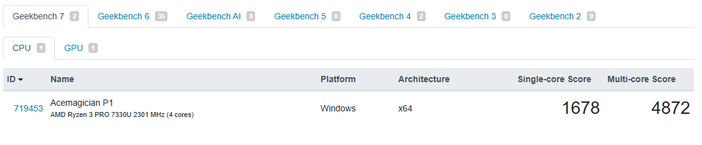
I also ran it through Geekbench 7, the newer version, which I’m starting to use to build a comparison database for future reviews: 1,678 points single-core and 4,872 multi-core. Scores from the two versions can’t be compared directly, since the workloads and calculations have changed. This second measurement simply confirms the processor’s performance: the 7330U runs Windows without breaking a sweat, which is reassuring for a machine you plan to keep for several years.
Geekbench OpenCL: much more modest graphics performance
Geekbench also measures the GPU using OpenCL, which gives an indication of its ability to perform parallel calculations, as used by some photo-editing, rendering, video and scientific computing software. This score doesn’t directly tell you how many frames per second you’ll get in games.
The P1 scores 9,582 points in Geekbench 6 OpenCL. Here’s how my other machines performed.
| Machine | Geekbench 6 OpenCL |
|---|---|
| NiPoGi E1, Intel Graphics | 4,252 |
| Khadas Mind, Intel Iris Xe | 6,398 |
| GMKtec G11, Radeon Graphics | 8,487 |
| NiPoGi P1, Radeon Graphics | 9,582 |
| GMKtec M3 Pro, Intel Iris Xe | 13,517 |
| Lenovo Yoga 7, Intel Arc 130V | 18,211 |
| GEEKOM AE7, Radeon 780M | 33,897 |
It outperforms the G11, but still falls well short of more modern graphics chips. Its integrated Radeon has six compute units running at up to 1,800 MHz and shares the system’s RAM. The single-channel DDR4 at 2,667 MT/s probably holds it back a little. In Geekbench 7 OpenCL, it scores 7,132 points (don’t compare this with Geekbench 6, as the scales differ).
This GPU is more than capable of displaying Windows, driving high-resolution displays, playing videos and accelerating certain applications. Forget about modern games, though. 3DMark confirms that emphatically.
PCMark 10: good for office work
I like PCMark 10 because it simulates real-world usage rather than raw calculations: web browsing, video calls, launching applications, spreadsheets, word processing, photo editing and video editing. It quickly shows whether a machine feels responsive or sluggish.
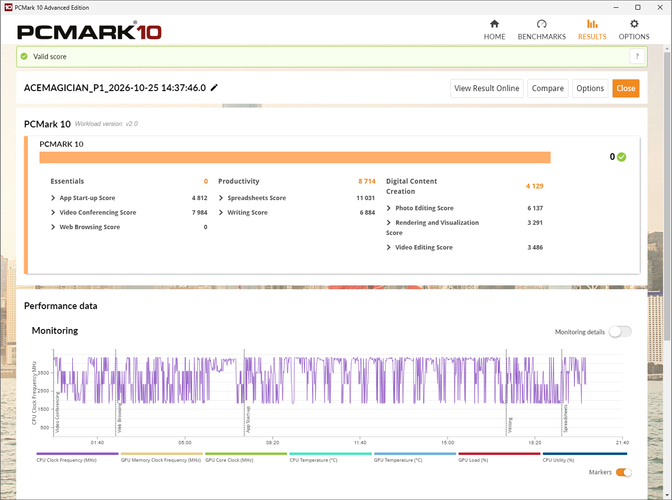
The Productivity score, which covers spreadsheets and word processing, reaches 8,714 points, including an impressive 11,031 for spreadsheets. There’s plenty of headroom for spreadsheets and documents, although it will depend on the size of the files. Video calls do reasonably well, with 7,984 points.
As soon as the GPU gets involved, the scores drop: 4,129 points for content creation, including 3,291 for rendering and visualization and 3,486 for video editing. Light photo editing is fine. For large video projects or complex graphic compositions, you’ll need to be patient. That’s no surprise given the hardware.
For comparison, my GMKtec M3 Pro scored 5,999 overall in PCMark 10, 9,398 in Productivity and 6,833 in Digital Content Creation. The NiPoGi comes close for office work, but falls well behind for content creation.
CrystalDiskMark: the SSD is the main weak point
CrystalDiskMark measures read and write speeds. Sequential tests correspond to large files copied in one go, such as a video several gigabytes in size. Random 4K tests reflect the thousands of small accesses Windows and applications make to read a configuration file, load a library or manipulate data.
Here’s how the P1’s 256 GB SSD performs.
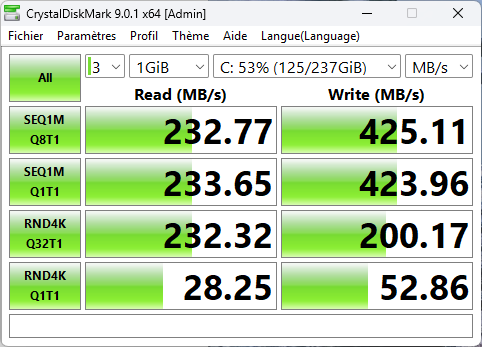
And this is where I start to wince a little. 233 MB/s sequential read and around 425 MB/s write! In 2026, that’s very slow, when current NVMe SSDs reach several thousand MB/s. Read speeds are even lower than those of a good SATA SSD.
Once you open it up, it makes more sense: the manufacturer hasn’t installed an NVMe SSD, but a model using the SATA protocol, despite its M.2 form factor.
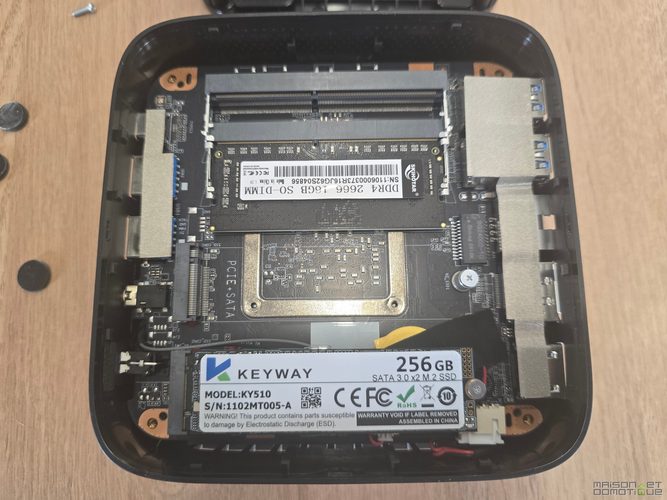
For basic office work, it’s not a deal-breaker: it’s still an SSD, much more responsive than an old hard drive. But for copying large files, installing heavy software, running several virtual machines or storing lots of data, it becomes a drawback. If NiPoGi were to improve just one thing, this would be it.
Can you upgrade the memory and storage?
The good news is that the P1 isn’t a sealed system. The documentation and my teardown show two SO-DIMM slots and the option to expand storage via M.2. The processor supports up to 64 GB of memory, but the motherboard and BIOS have a say too. If the unit really does come with just one memory stick, adding a second identical one would enable dual-channel mode.
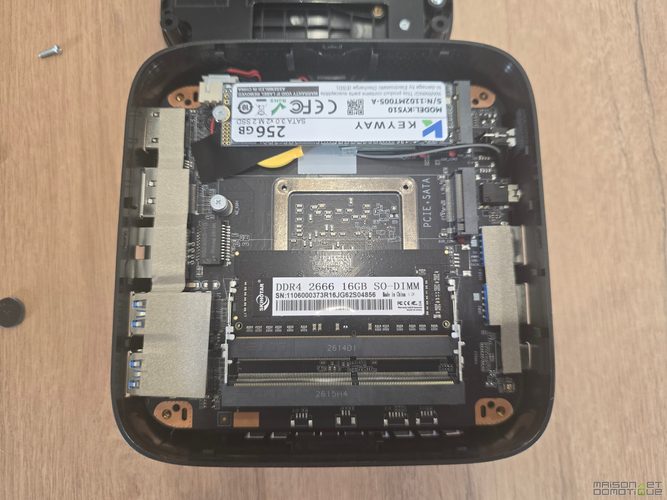
That’s a welcome feature if you want to turn it into a small server or keep it for a long time. Just be sure to check the exact type of M.2 slot (SATA or NVMe) before buying an additional SSD.
3DMark Time Spy: gaming isn’t its strong suit
3DMark is dedicated to graphics performance. Time Spy runs DirectX 12 3D scenes similar to those used by some games, and measures the GPU and processor separately.
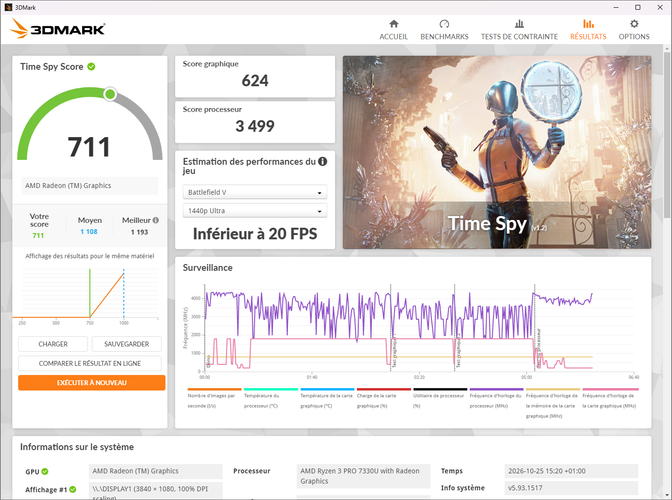
The P1 scores 711 overall, including 624 points for graphics and 3,499 for the CPU. The two graphics tests run at 4.07 and 3.58 frames per second. Not exactly smooth!
My GMKtec M3 Pro scored 1,630 points, including 1,431 for graphics and 7,831 for the CPU. So the P1 scores less than half as much. That doesn’t mean every game will run at half the speed, but the gap between the two platforms is clear. The P1 will quickly struggle with a recent game full of effects and textures.
It can, however, handle older games, less demanding indie titles, 2D games or retro emulation. Stardew Valley, Terraria and classic emulated games don’t need a powerful graphics card. I tested Fortnite on it without any problems, but a game like Cyberpunk 2077, for example, is out of the question.
Steel Nomad Light: just 584 points
Steel Nomad Light is a newer 3DMark benchmark, and its Light version is aimed at lower-powered machines. The P1 scores 584 points, or an average of 4.33 frames per second. That’s low, and consistent with Time Spy: the integrated Radeon Vega isn’t designed for detailed 3D scenes.
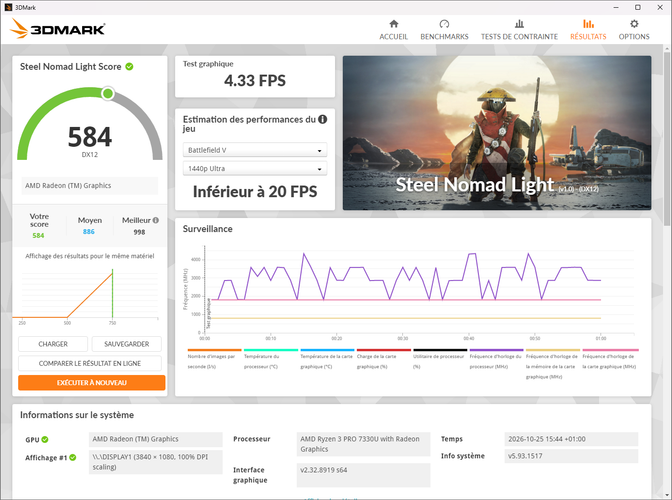
These benchmarks are deliberately very demanding, and 4.33 FPS here doesn’t mean 4.33 FPS in every game. They mainly show that the P1 has no graphics headroom for modern 3D workloads.
VRMark: no compatible tests
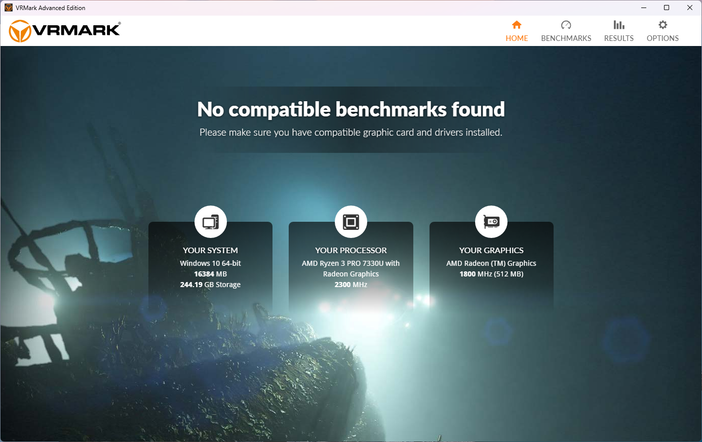
I also tried VRMark, which assesses whether a PC can power a virtual reality headset. The app didn’t offer any tests compatible with the detected configuration, so there’s no score to report. Given the 3DMark results, the P1 isn’t a PC VR machine anyway.
Temperatures and cooling: reassuring overall
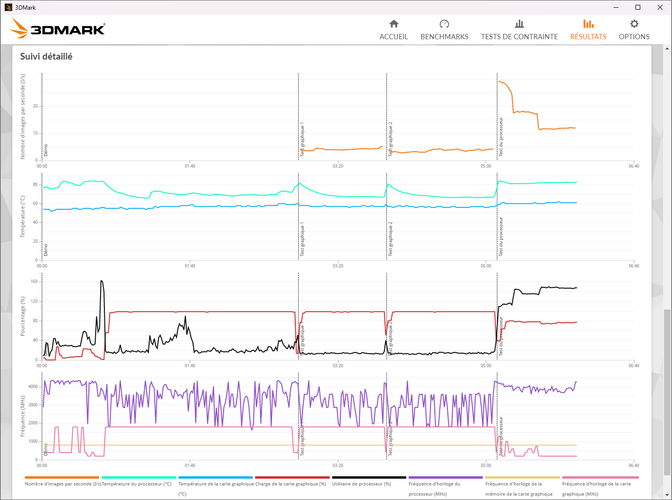
A mini-PC also needs to handle heat, especially in a case this cramped. The 3DMark monitoring graphs show CPU and GPU frequencies, temperatures and usage.
Under Time Spy, the processor reaches around 80 to 85 °C during the heaviest phases, while the GPU mostly stays between 55 and 61 °C. Under Steel Nomad Light, the CPU settles at around 60 to 65 °C after starting out hotter, and the GPU runs at around 53 to 55 °C while under almost 100% load. Nothing to worry about for a mobile Ryzen rated for a maximum of 95 °C. CPU frequencies vary, which is normal: the processor constantly adjusts according to the workload and the available thermal and power headroom.
In another test, I recorded around 84 °C after an hour under heavy load, 30 to 35 dBA, and power consumption at the outlet of around 5.8 W at idle and 42 W under CPU and GPU load.
So what can you actually use it for?
Benchmarks are all well and good, but the real question is: what will you use the computer for? With its Ryzen 3 PRO 7330U and 16 GB of RAM, the P1 can meet the needs of many households.
Remote work and office tasks
This is clearly where it’s most comfortable. Word processing, spreadsheets, email, web browsing, video calls, documents and everyday business apps: it can handle them all. It would make an excellent family computer or office workstation for a small business. Multiple displays, a form factor that fits almost anywhere, Windows 11 Pro for remote administration… With 16 GB of RAM, you can open plenty of tabs and apps at once without giving it much thought.
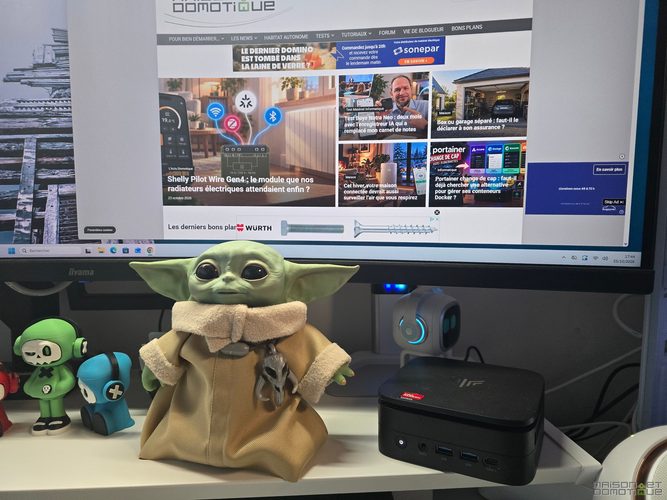
It has a lot going for it as a computer for a student writing assignments, a freelancer managing their business or anyone who mainly uses their PC for the internet and documents.
A living room PC
You can also connect it to a TV. The GPU handles 4K and has hardware video acceleration for streaming services, browsing, accessing a NAS and playing media files. Just bear in mind that displaying the desktop in 4K or playing an HD video is nothing like running a game in 4K. The P1 is suitable for pure media playback, although smaller and cheaper options are available if that’s all you need it for.
Photo editing and video editing
There’s no problem with occasional photo editing: cropping, adjusting exposure, preparing images for a website and making simple graphics. That said, it’s still a modest system. Complex editing, heavy processing or lots of effects will quickly overwhelm it. If I were regularly editing 4K footage or working with professional creative software, I’d choose a more powerful processor and, above all, a more recent GPU, like the one in the GMKtec M3 Pro I tested previously.
Home Assistant, Jeedom, Docker or Proxmox
It’s hard to review a mini-PC on Maison et Domotique without asking this question! These little machines have become ideal candidates for hosting a home automation hub, network services or apps that run continuously.
The P1 has a lot going for it. Four cores and eight threads are enough for several lightweight services, and 16 GB of RAM is far more than a simple Home Assistant setup requires. You could run Linux with Home Assistant, Mosquitto, Zigbee2MQTT, Node-RED, AdGuard Home, a VPN server and other lightweight services.
The processor supports AMD-V, so virtualization is possible. Proxmox with Home Assistant OS in a virtual machine and a few Linux containers alongside it is a viable setup. You’ll just need to size the number of VMs according to the available memory and each service’s requirements.
That said, I wouldn’t choose it for a particularly ambitious deployment. 256 GB fills up quickly when you start piling on VMs and backups, and the measured speeds aren’t suited to workloads that make heavy use of the drive. Gigabit Ethernet is enough for home automation, but less so for heavier network workloads. And there’s only one Ethernet port: for an OPNsense or pfSense router, you’ll need to use VLANs or add an adapter. It’s doable, but less convenient than a machine with two built-in ports.
Frigate and video surveillance
The P1 can serve as a small monitoring machine or run a few video surveillance services. Be careful with Frigate, which can quickly become resource-hungry as you add more cameras and analyses. The processor may be sufficient for recording or managing a few streams, depending on the configuration. For AI object detection, it’s better to add a compatible accelerator rather than relying entirely on the CPU. And 256 GB won’t be enough to keep weeks of recordings from several cameras.
So the P1 is a good option for a typical home automation setup. For a more demanding multi-purpose server, plan on upgrades or look at higher-end models.
It all comes down to the price
Price is the deciding factor for this P1. It offers very decent CPU performance, plenty of ports and Windows 11 Pro. But it shows its age in several areas: relatively slow DDR4, Wi-Fi 5, Bluetooth 4.2, Gigabit Ethernet and a modest GPU. And its 256 GB SSD disappoints in both capacity and speed.
So look at the price you’ll actually pay, not the crossed-out price often shown on online marketplaces. Below €250 to €280, it’s a good deal for anyone looking for a versatile little desktop PC. Around €300, it still holds its own, especially thanks to its many USB ports and upgrade options. At €350 or €400, the competition gets much tougher, with more powerful processors, larger SSDs or more modern networking. And when the price approaches that of the GMKtec M3 Pro (around €449 when I reviewed it), the P1’s compromises are hard to justify without a substantial discount.
Also pay attention to the configuration: the Ryzen 4300U, Ryzen PRO 7330U and Ryzen Embedded versions all have almost the same name, but they’re not the same machines.
Conclusion: a good little desktop PC held back by a few cost-cutting choices
The NiPoGi P1 with its Ryzen 3 PRO 7330U sums up what I love about mini-PCs: a proven platform packed into a tiny case that meets everyday needs without cluttering up your desk.
The processor pleasantly surprised me. With 1,789 single-core points and 4,881 multi-core points in Geekbench 6, it clearly outperforms entry-level mini-PCs. The 16 GB of RAM is welcome, and the selection of ports (seven USB ports, support for three 4K displays) is a real selling point. Office workstation, family PC, remote work, small Home Assistant server: it can do a lot.
But the cost-cutting shows in the results. The Radeon Vega struggles as soon as you launch a demanding 3D workload, the memory runs at a low speed, and the 256 GB SSD is a real disappointment. Wi-Fi 5 and Gigabit Ethernet are reminders that you’re not buying a current-generation platform.
Is that a problem? Not for everyone. For web browsing, office work, a few apps and video, you don’t need a Ryzen 9 or a powerful graphics card, and the P1’s CPU benchmarks show it can handle those tasks. For heavy virtualization, video editing, gaming or local AI, I’d recommend moving up to a higher-end model.
Ultimately, my verdict depends mainly on the price. At a good discount, it’s an appealing little office PC. At the price of a more powerful modern mini-PC, its compromises are much harder to accept. It won’t break any records, but it’s compact and does what you ask of it. For a lot of people, that’s more than enough.
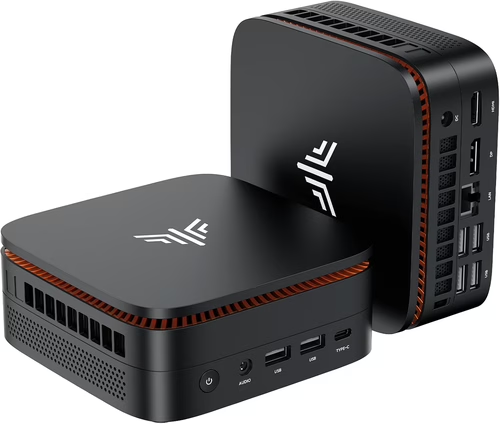
NiPoGi P1 Mini PC ΑΜD Pro 7330U
Black Friday: take advantage of deals on NiPoGi and other brands from the group
For Black Friday, NiPoGi is also offering a selection of deals on its mini-PCs and other high-tech products. The manufacturer has set up a dedicated Black Friday deals website, bringing together offers from several brands in the group. It’s a chance to discover other configurations, some more powerful or better equipped than the P1 reviewed here, and take advantage of some great discounts. Just remember to compare the specs and prices before you buy!