


Résumer cet article :
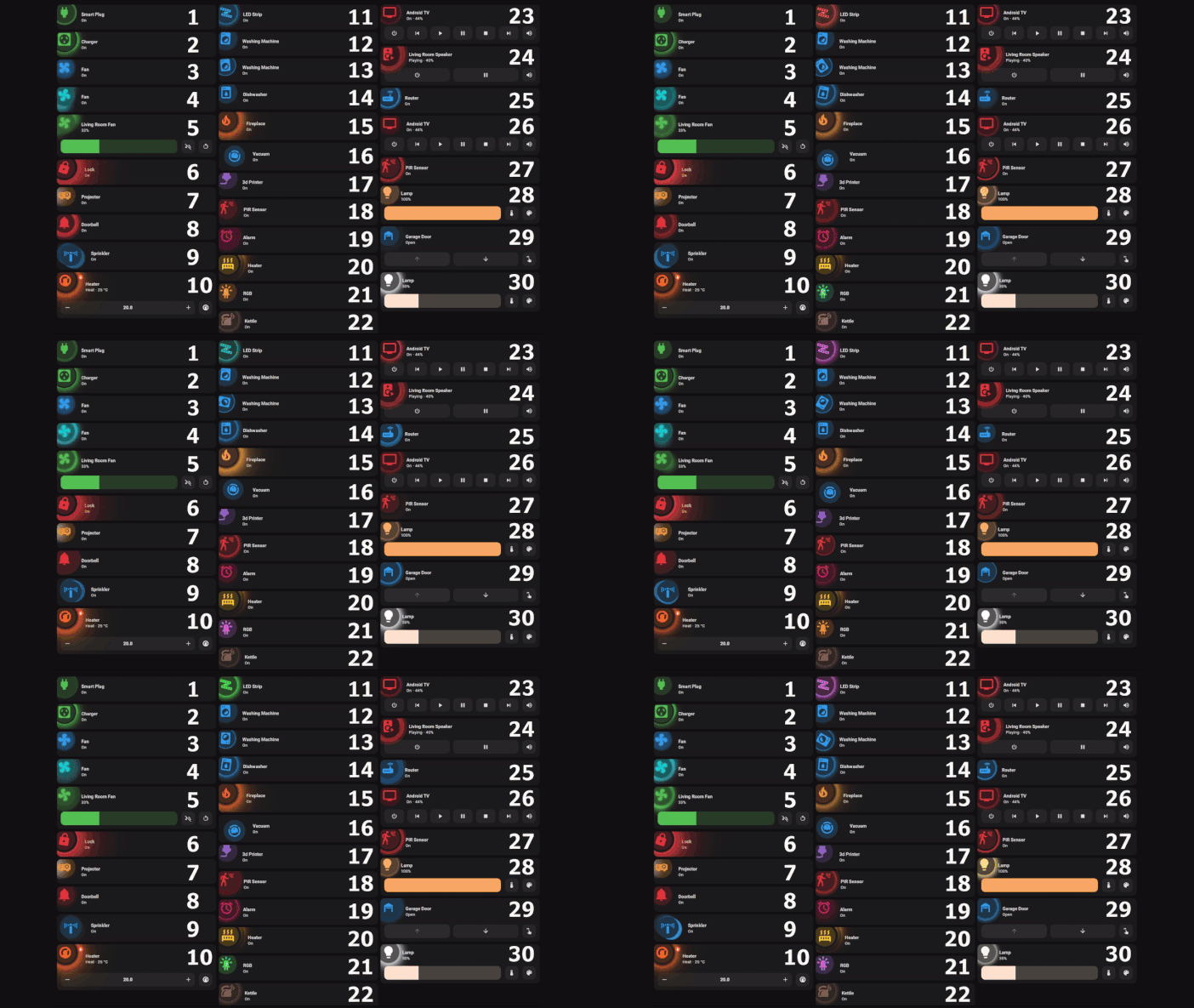
HA-Animated-cards is a collection of ready-to-use cards (67 templates at the time of writing) to “animate” a Home Assistant dashboard, especially if you are already using Mushroom. The idea is not to sprinkle glitter everywhere: the animations are rather discreet, clean, and they activate when it makes sense. A washing machine “turns” when it is consuming, a fan starts to spin when it is actually running, a plug “glows” only if it is drawing power, etc.
The pleasing point: this is not a “huge” custom card that adds a ton of JavaScript. The project mainly relies on Mushroom as the base, and on card-mod to inject the style (CSS) and animations. The result: it’s lightweight, and it integrates very well into an already existing dashboard.
Why it’s interesting in Home Assistant
A dashboard is quickly glanced at several times a day. And in real life, “seeing” the state in a split second is sometimes better than “reading” a value. HA-Animated-cards provides just that instant reading.
Let’s take three very concrete situations.
The washing machine is “On,” yes… but is it really running? With an animation triggered by the power (W), you immediately see if the cycle is in progress or if the machine is just on standby.
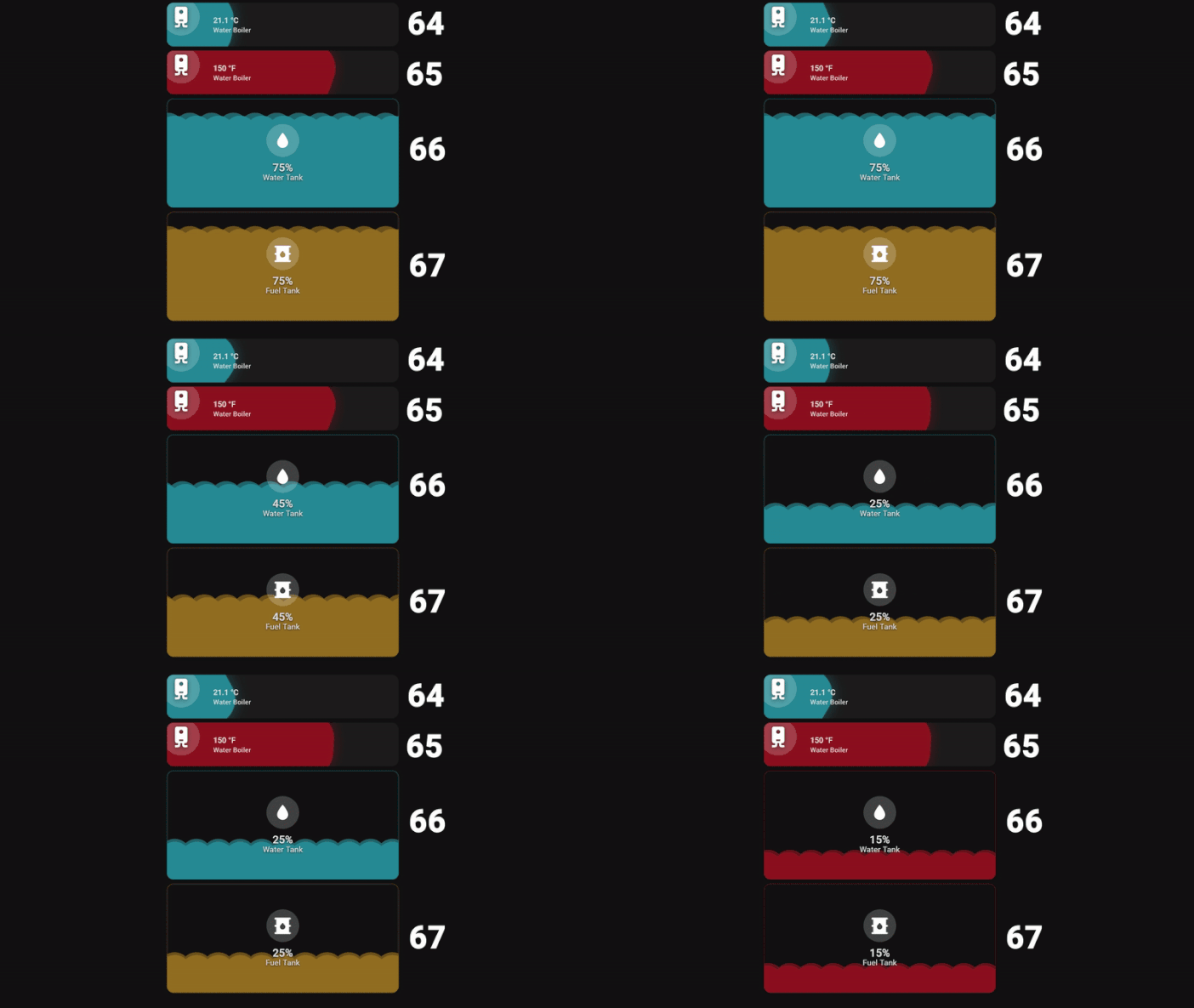
A battery at 23%: you see it. But if it is charging, you also want to understand that without going into detail. The “battery/progress” models can display a different behavior when a “charger” sensor is active (typically for a smartphone).
Temperature / humidity: the “environment” cards can react visually according to thresholds, and even display an interactive graph over time to understand a trend (humidity rising after a shower, temperature dropping at night, etc.).
In short, readability improves, and you find yourself using the dashboard with more pleasure (yes, that’s a real argument… a dashboard that you like to look at, you keep it updated!).
Prerequisites
The recommended foundation by the author is simple: HACS, Mushroom (cards and theme), and card-mod (installable via HACS in 2 clicks).
Depending on the models, you may also cross with mushroom-legacy-template-card (often mentioned as a handy dependency), and for certain “with graph” variants, complementary cards like mini-graph-card and vertical-stack-in-card.
A detail that prevents you from pulling your hair out: it is recommended to use a dashboard display in Section or Masonry mode, and if your animations seem not to trigger, changing the view type may resolve the issue.
Installation: the (simple) logic of HA-Animated-cards
HA-Animated-cards does not install like a traditional Home Assistant integration. The principle is more of “copy-paste”: you create a Mushroom card (or a manual card according to the model), you configure it normally (entity, name, icon…), then you paste the style/animation block provided by the project in the card_mod section.

It’s important: do not try to “add the repository in HACS” as if it were a plugin to install. Here, you retrieve pieces of YAML + style to paste into your cards.
Step by step implementation
In practice, the implementation is therefore very simple:
You open your dashboard, then you apply the Mushroom theme to the view where you are going to place the cards (this is strongly recommended).
You add the base card, often a Mushroom Entity Card (or a Mushroom Light Card for lights).

You adjust the standard fields (entity, name, icon, info…), then you switch to code editor and paste the style from the card_mod section provided by HA-Animated-cards.

You replace the required entities in the copied code. For some models, this is “in two places” (typical example: environment cards + graph).
And you adjust the thresholds (temperatures, watts, percentages) to fit YOUR home. Because a washing machine, a ventilation system, or a radiator do not all have the same power consumption signature, and that’s exactly where these cards become “smart”.
Example 1: “smart plug” card driven by power
Very telling use case: a smart plug on a washing machine, a dryer, a 3D printer, or even a server.
You create a Mushroom Entity Card on the entity of the plug (switch). Then, you paste the corresponding animation, and you make it “smart”: the animation no longer depends solely on the On/Off state, but on a power sensor (W). When the power exceeds a threshold (often 0 W is sufficient), the animation starts. You can also change the comparison operator according to your needs.

A small detail that matters: for card-mod to correctly retrieve the color, the author recommends choosing a real icon color and avoiding the “primary” or “accent” options.
Example 2: environmental cards (temperature / humidity) with interactive graph
This is the kind of card that makes you say “okay, this is classy” in 2 seconds.
The method shown is very straightforward: you add a manual card in the dashboard, you paste the YAML from the model, then you replace the sensor entity in the indicated locations (typically, once for the main display and once for the graph). Then, you adapt the min/max values or thresholds used so that the scale fits your room (a damp basement isn’t set the same as a bedroom…).

To save space, the trick is to combine two cards side by side via a Grid Card (2 columns), then adjust the height of the cards and the width of the graph so that everything remains compact.
Example 3: battery / percentage cards (smartphone, sensor, download…)
These models apply to anything that exposes a percentage: phone battery, Zigbee sensor battery, 3D printing progress, download progress…
The demo suggests starting from a Mushroom Entity Card on the battery sensor, without forcing a custom icon, and with a color rather white/light gray. Then, you paste the card_mod part of the chosen model.

For a phone, there’s a nice bonus: you can add a “charger” sensor (plugged in / charging) to display a specific animation when it charges.
And on the customization side, we stay practical: variables for text sizes (primary/secondary), icon size, and even a line to comment/delete if you don’t like the “in a corner” position.
Tips and classic pitfalls
If an animation “is not working,” start by checking two very simple points: the dashboard view type (some people find that changing views resolves the situation) and whether you are using the Mushroom theme on the view.
If a card depends on color (lights, icons that must “take” the hue), pay attention to the configuration instructions: for some types, you do not put an icon color, for others, you must choose a real color (not primary/accent).
If you are controlling an animation based on a numerical value (watts, temperature, humidity), take 2 minutes to choose a threshold that corresponds to your equipment. This setting transforms a “gadget” animation into a truly useful indicator.
Where to find models and how to go further
The project is centralized on GitHub, and the philosophy is simple: you choose a card, copy the YAML / style, replace the entities, and then adjust.
And if you like the video format, the author publishes very “step by step” demos, regularly featuring new models (cards requested by the community, more compact variants, versions with graphs, etc.).



Please remain courteous: a hello and a thank you cost nothing! We're here to exchange ideas in a constructive way. Trolls will be deleted.